Terminal:
Terminal is an terminal emulation application that you can use to Access a UNIX shell in the GNOME environment.
A shell is a program that interprets and executes the commands that you type at a command line prompt. When you start GNOME Terminal, the application starts the default shell that is specified in your system account. You can switch to a different shell at any time.
How to start?
Accessories ▸ Terminal.
or,
using shortcut key : ctrl+alt+t
or,
Press Alt+F2 -> type gnome-terminal
The Terminal makes a most important role for software development process. To start/kill process, to build/build the source code, capturing logcat, to executing adb commands and some other purpose developers are preferred terminal. So Terminals also customized to get simple, easy, flexible as requirement needed. I am some terminal uses which makes my work easier.
1. Open terminal on right click in file explorer:
To get Open Terminal on file explorer you have to install 'nautilus-open-terminal' in your system. Follow the steps:
sudo apt-get install nautilus-open-terminal
You may need to restart nautilus for the change to appear.
killall nautilus && nautilus
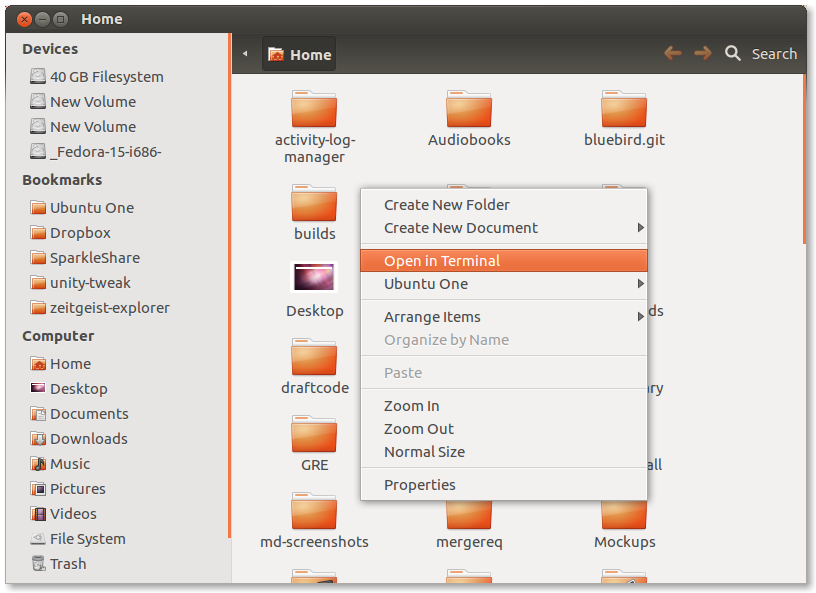
2. Split and file system in explorer:
If we are able to place terminal in our file explorer window, it will be easier to do all file system operation like search, permission change, grep, ... .
To get these facility in your system you have to install "nautilus-terminal" in your system.
sudo add-apt-repository ppa:flozz/flozz
sudo apt-get update
sudo apt-get install nautilus-terminal
You may need to restart nautilus for the change to appear.
killall nautilus && nautilus

3. Terminal on eclipse:
If you want terminal operation from eclipse, some plug-ins available in eclipse market place. You have to install that terminal.
Start eclipse -> Help -> Eclipse Marketplace -> search terminal and Click on install button on any terminal list item. -> Next -> Then Accept the term of the license Agreement -> Finish -> wait to complete download -> Ok -> restart eclipse.

After restart Goto Window Menu -> Show View -> Expand General node -> Select Terminal -> OK.

Use terminal in eclipse.

Terminal is an terminal emulation application that you can use to Access a UNIX shell in the GNOME environment.
A shell is a program that interprets and executes the commands that you type at a command line prompt. When you start GNOME Terminal, the application starts the default shell that is specified in your system account. You can switch to a different shell at any time.
How to start?
Accessories ▸ Terminal.
or,
using shortcut key : ctrl+alt+t
or,
Press Alt+F2 -> type gnome-terminal
The Terminal makes a most important role for software development process. To start/kill process, to build/build the source code, capturing logcat, to executing adb commands and some other purpose developers are preferred terminal. So Terminals also customized to get simple, easy, flexible as requirement needed. I am some terminal uses which makes my work easier.
1. Open terminal on right click in file explorer:
To get Open Terminal on file explorer you have to install 'nautilus-open-terminal' in your system. Follow the steps:
sudo apt-get install nautilus-open-terminal
You may need to restart nautilus for the change to appear.
killall nautilus && nautilus
2. Split and file system in explorer:
If we are able to place terminal in our file explorer window, it will be easier to do all file system operation like search, permission change, grep, ... .
To get these facility in your system you have to install "nautilus-terminal" in your system.
sudo add-apt-repository ppa:flozz/flozz
sudo apt-get update
sudo apt-get install nautilus-terminal
You may need to restart nautilus for the change to appear.
killall nautilus && nautilus

3. Terminal on eclipse:
If you want terminal operation from eclipse, some plug-ins available in eclipse market place. You have to install that terminal.
Start eclipse -> Help -> Eclipse Marketplace -> search terminal and Click on install button on any terminal list item. -> Next -> Then Accept the term of the license Agreement -> Finish -> wait to complete download -> Ok -> restart eclipse.

After restart Goto Window Menu -> Show View -> Expand General node -> Select Terminal -> OK.

Use terminal in eclipse.


No comments:
Post a Comment